Tips & tricks
iPhone / iPad
Learn how to save recipes from the iOS share sheet and use the Repitta widget.
Save recipes more quickly
On iPhone or iPad, you can save a recipe to Repitta directly from the Share button in another app.
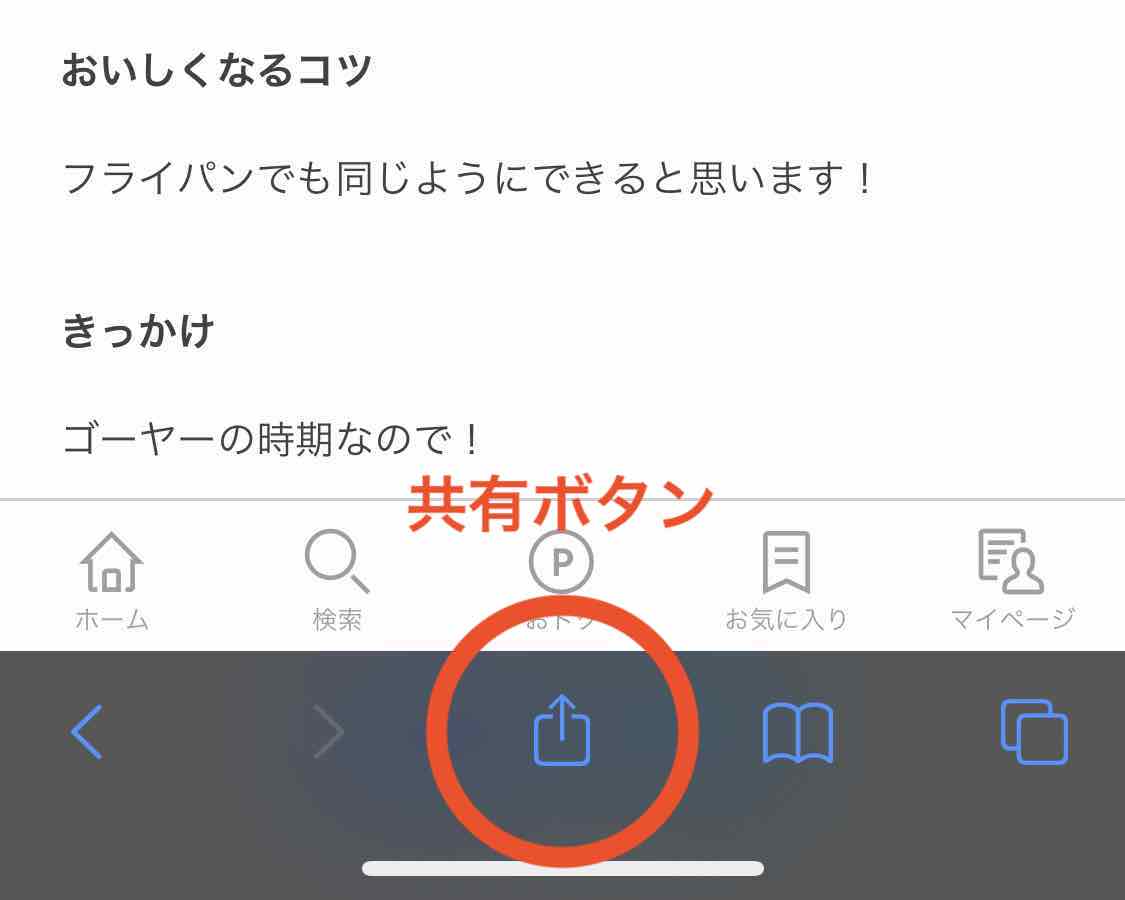
- 1Open a recipe page in Safari, then tap the Share button at the bottom of the screen.
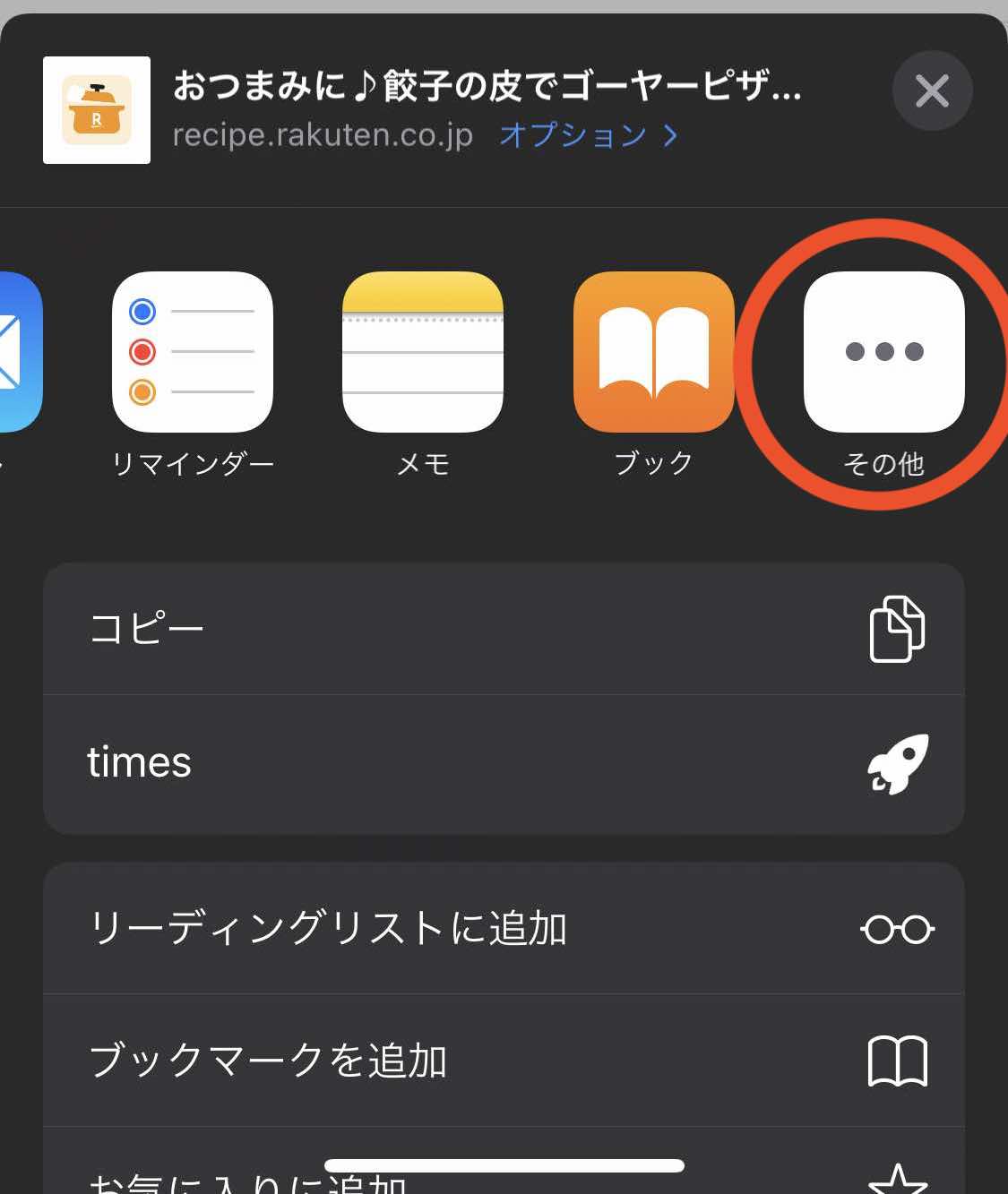
- 2Scroll the row of app icons all the way to the right and tap More.
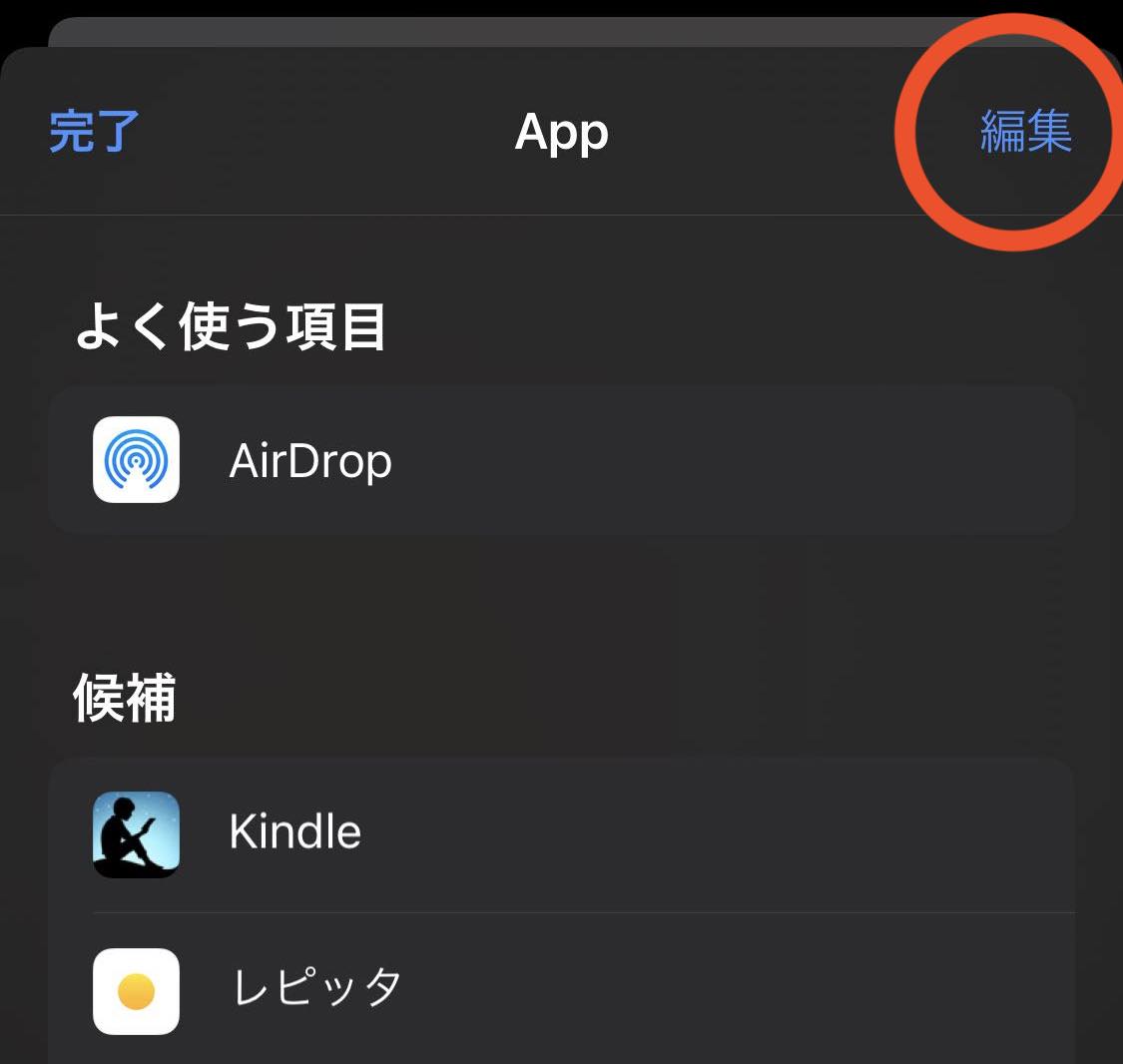
- 3Find Repitta, then tap Edit in the upper-right corner. If Repitta is missing, try restarting your device.
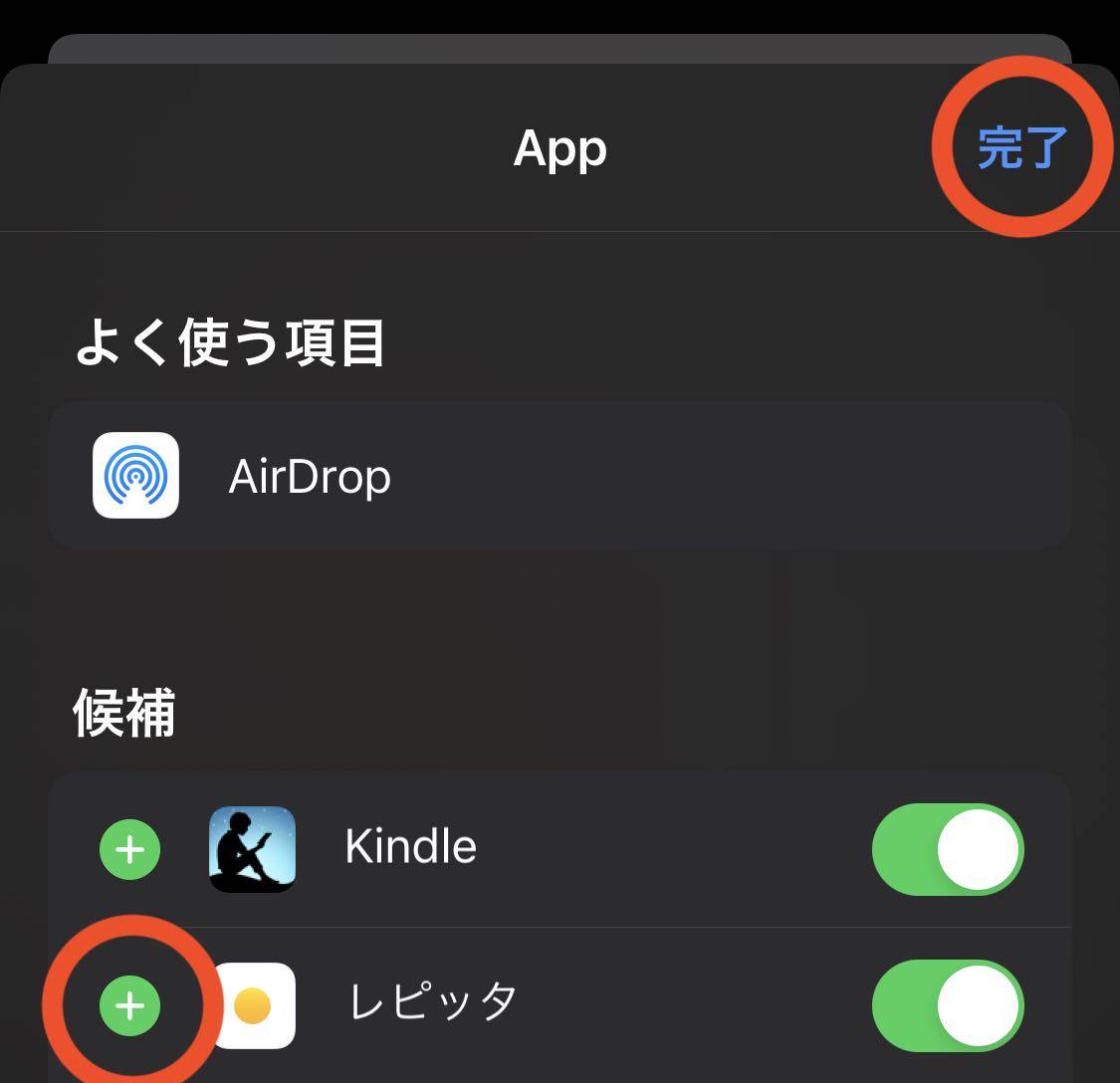
- 4Tap the green plus button beside Repitta, then tap Done.
- 5Repitta now appears in the share sheet. Tap its icon.
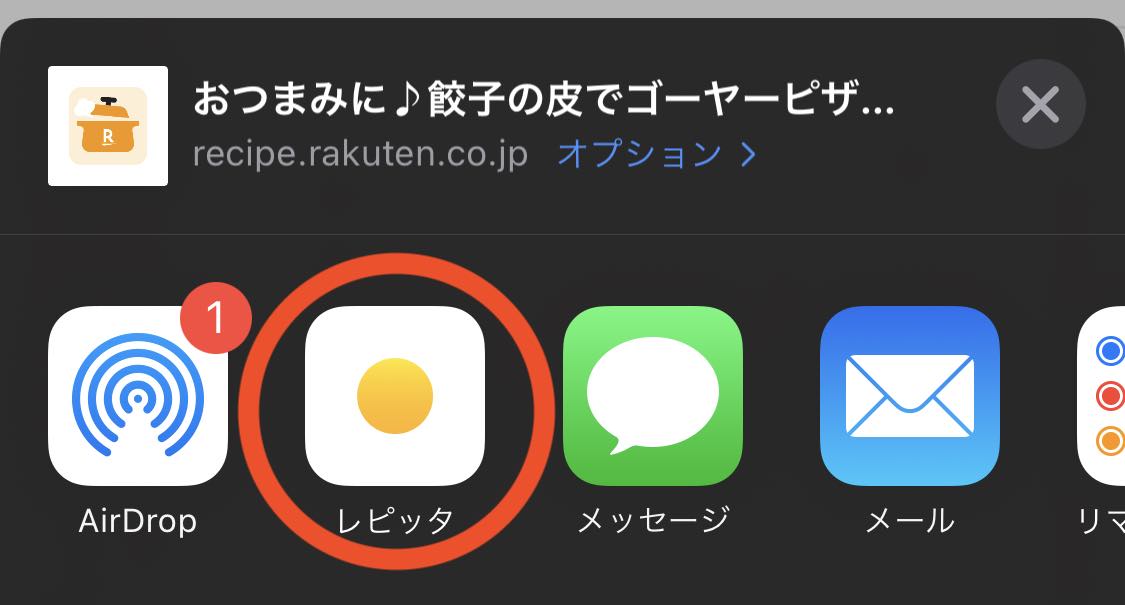
- 6Review the recipe name and categories, then tap Save in the upper-right corner.
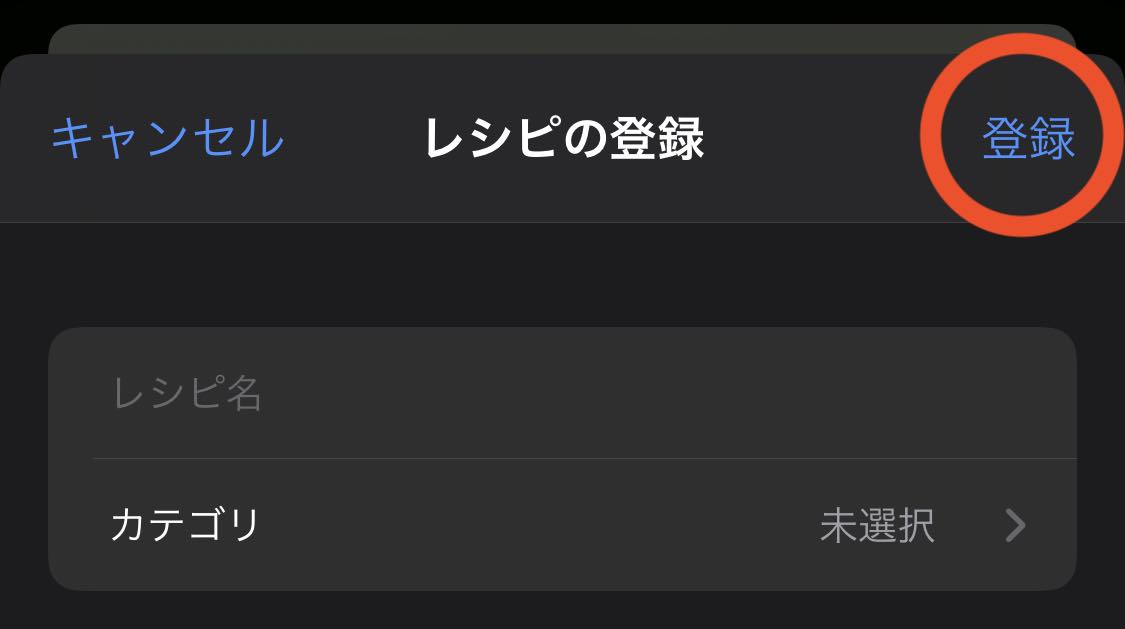
That’s it. You can now send recipe pages to Repitta without copying and pasting their URLs.
Use the widget
The Repitta widget lets you discover recipe ideas from your Home Screen without opening the app.
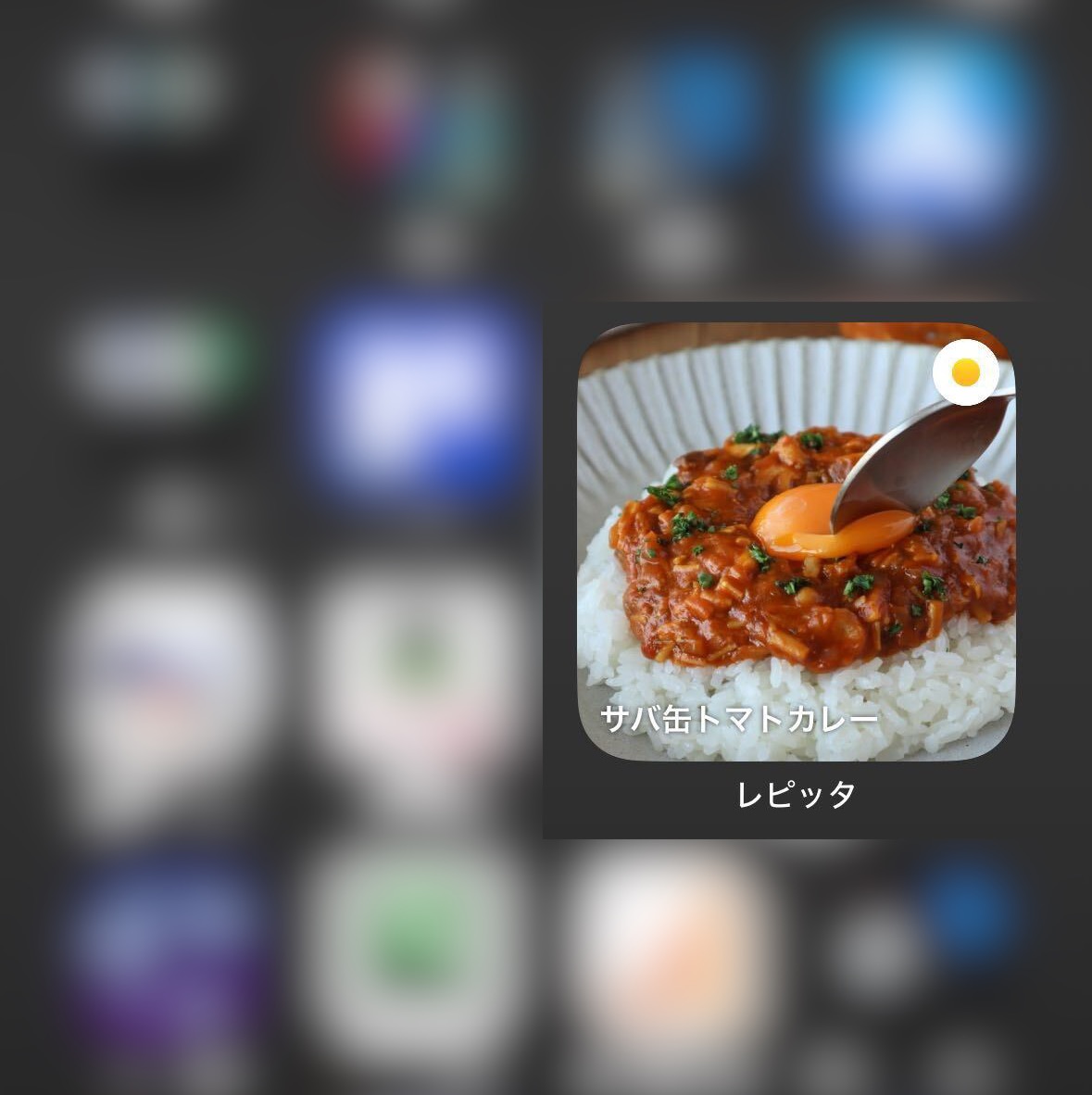
The widget shows recipes from Repitta’s Discover feature. Anyone can browse these recipes.
See Apple’s instructions to add or edit a widget.
How to add and edit widgets on iPhone